Storefront not loading on Concept 2.0.0 or 2.1.0? Here's the 2-minute fix
If your store suddenly stopped working and you're using Concept version 2.0.0 or 2.1.0, this guide will get you back online in a few minutes. No coding knowledge needed — just follow the steps and screenshots below.
vendor.js. Takes about 2 minutes.
Am I affected?
This issue affects only two versions: 2.0.0 and 2.1.0. Version 2.1.1 and above are NOT affected.
To check your version:
- From your Shopify admin, go to Online Store → Themes.
- Look at your current (published) theme — the version number is shown right under the theme name, e.g. "Concept — version 2.0.0".
What happened?
Shopify recently changed the way theme JavaScript files are processed (minified) on their servers. This change conflicts with one small plugin bundled in Concept 2.0.0 and 2.1.0, which can make the storefront stop loading.
Two important things to know:
- This was not caused by anything you did.
- None of your data is affected — products, orders, customers, and theme settings are all safe. Only one line of code needs to be removed.
Before you start: make a backup (30 seconds)
You'll be editing one file, so let's make a safety copy first:
- Go to Online Store → Themes.
- On your current theme, click the "⋯" button, then select Duplicate.
- A copy named "Copy of ..." appears in your theme list. That's your backup — you won't touch it.
The fix: remove one line in vendor.js
Step 1Open the code editor
- Go to Online Store → Themes.
- On your current (published) theme, click the "⋯" button, then select Edit code.
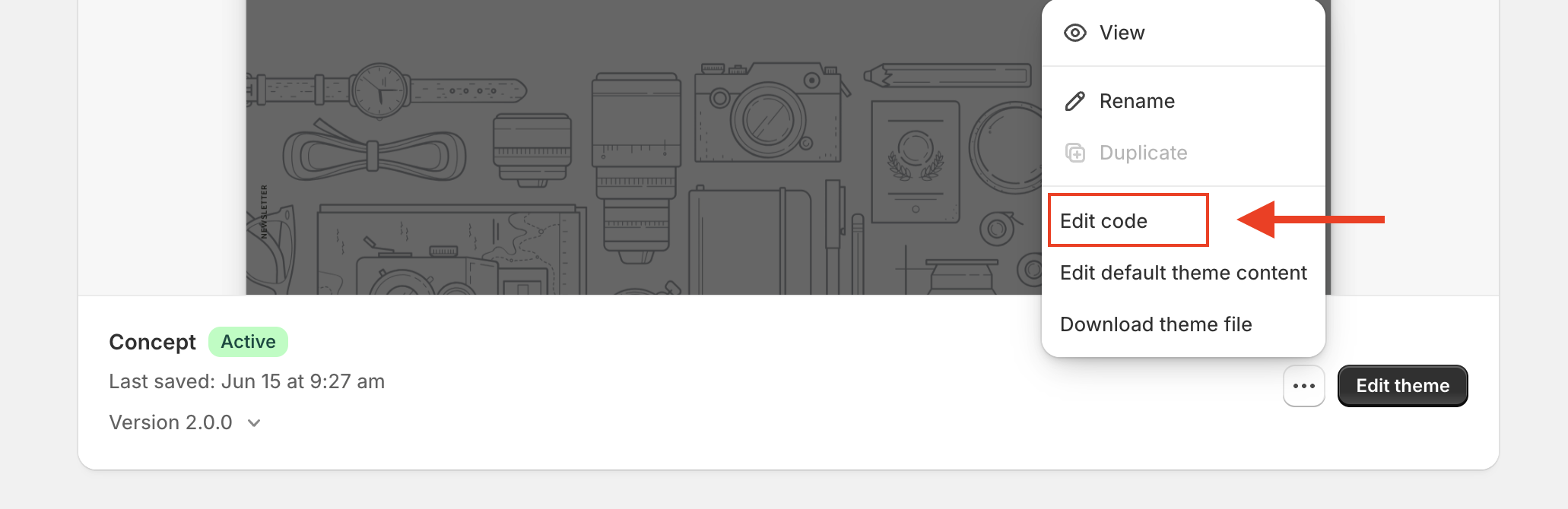
Step 2Find the file vendor.js
- In the left sidebar you'll see your theme's folders.
- Click the Assets folder to open it.
- Files are listed alphabetically — scroll to the end of the list and click
vendor.jsto open it.
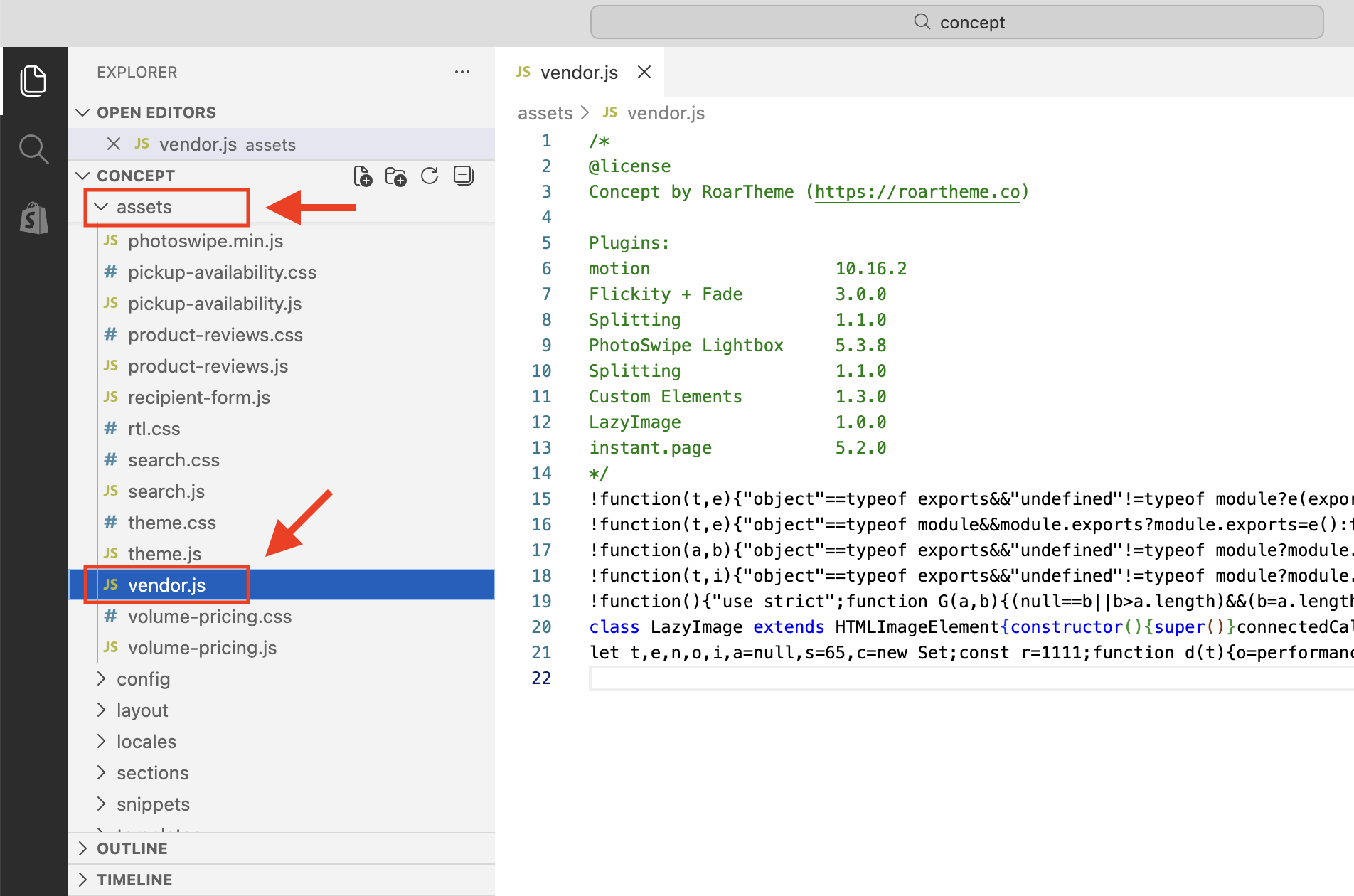
Step 3Find the problem line
The line we need to remove is line 21 — a very long line that starts with:
let t,e,n,o,i,a=null,s=65,c=new Set;
There is only one line like this in the file — it sits just below a line starting with class LazyImage.
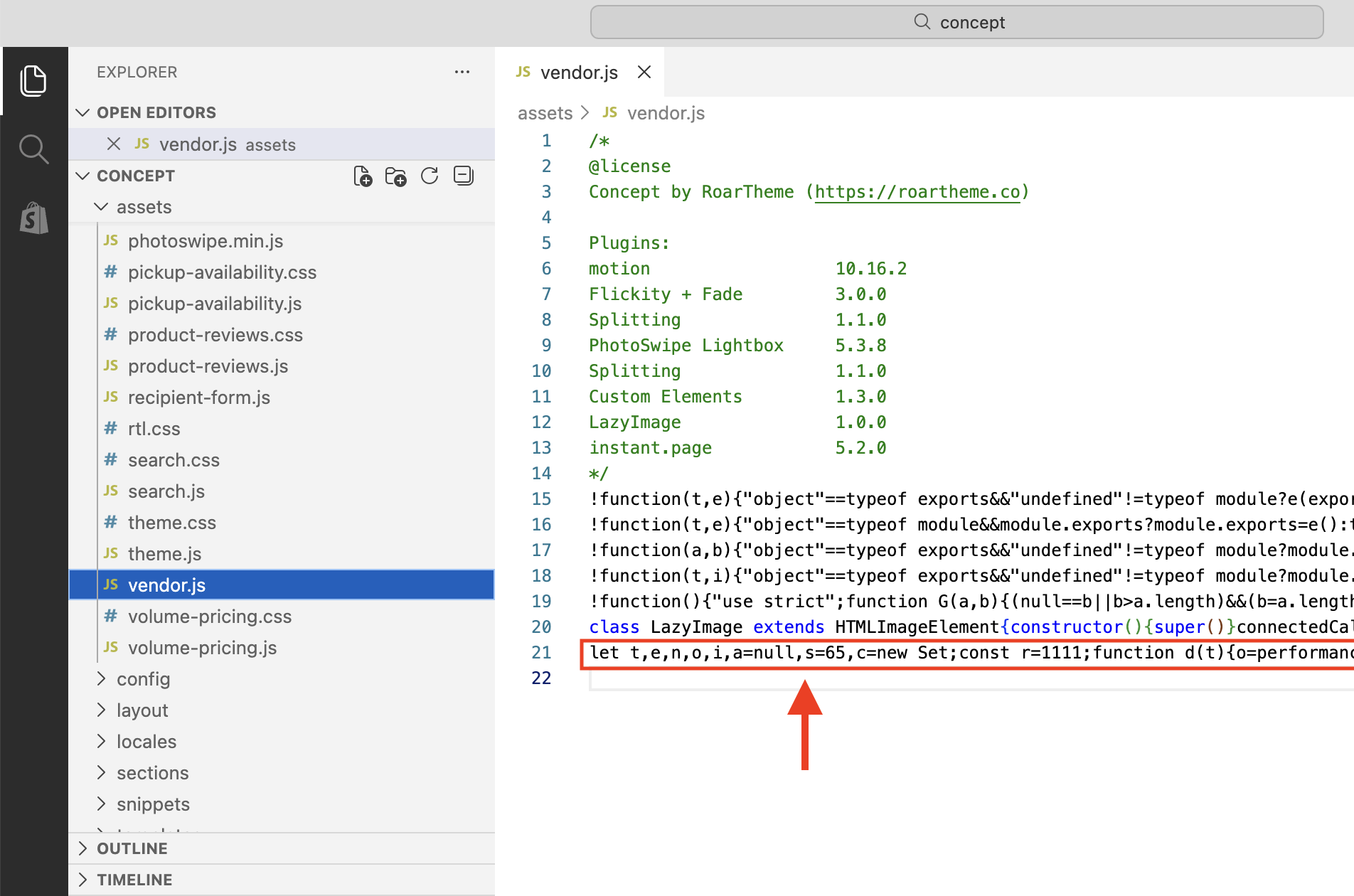
Step 4Delete the whole line
The entire line must be deleted (not just edited). The easiest way to select such a long line without missing anything:
- Click at the very beginning of the line, right before the word
let. - Select to the end of the line:
- Windows: hold Shift and press End
- Mac: hold Shift + Cmd (⌘) and press → (right arrow)
- Press Backspace (or Delete) to remove it.
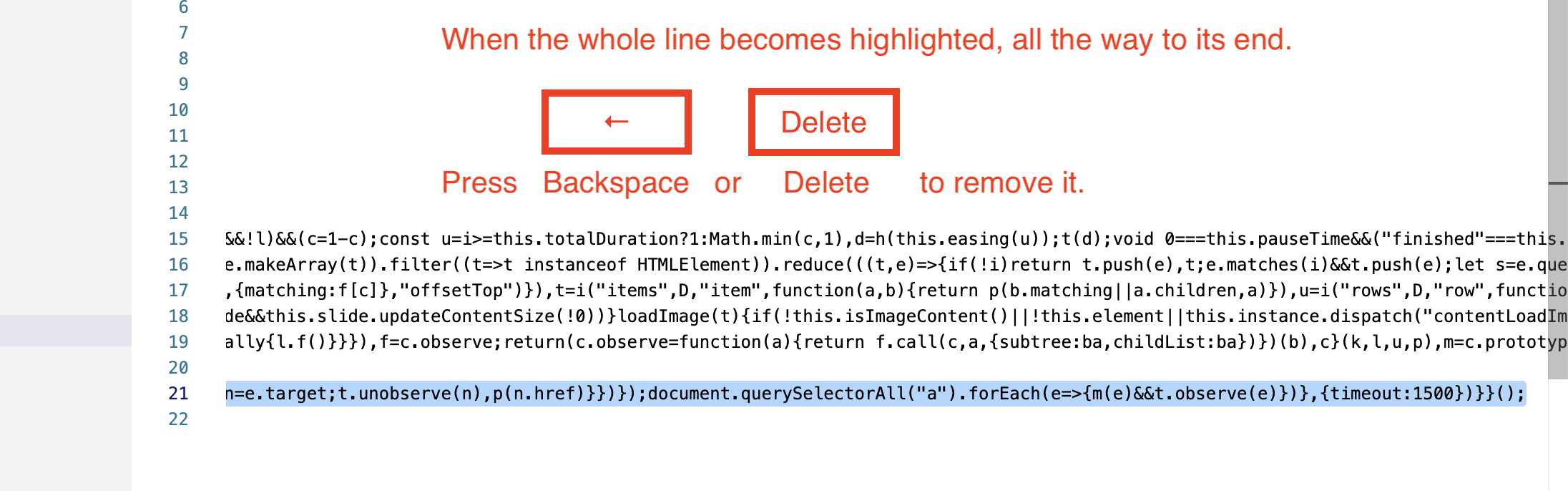
It's fine if an empty line is left behind — that doesn't affect anything.
Step 5Save and check
- Click Save (top right).
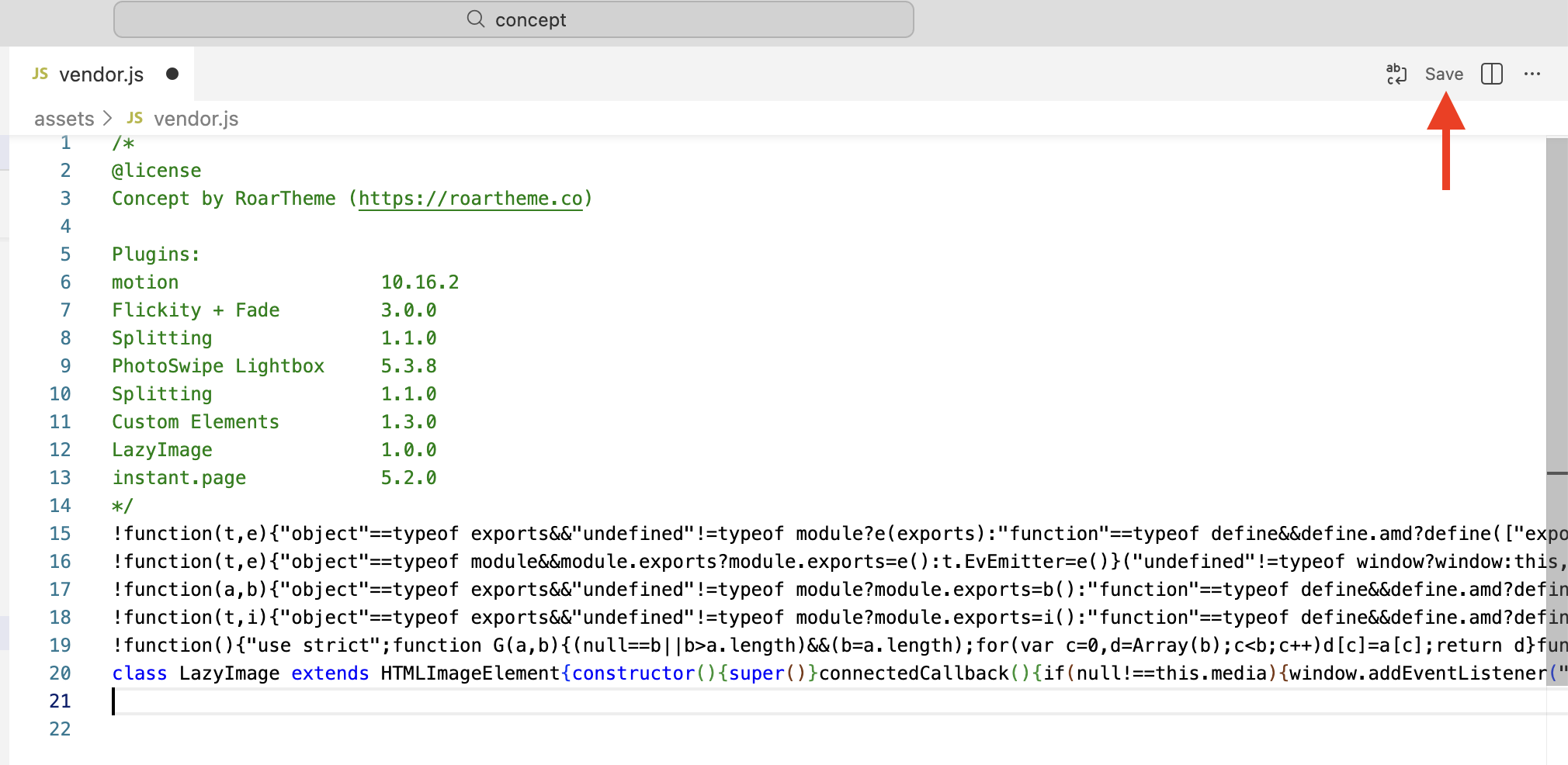
- Open your storefront in a new tab and refresh — it should load normally again.
"What does that line do? Is it safe to remove?"
Completely safe. That line is a small optional speed plugin (it pre-loads pages when visitors hover over links). Your store will look and work exactly the same without it — nothing visible changes for your customers.
A few extra notes
- If you have more than one Concept theme in your theme list (e.g. an unpublished draft on 2.0.0 or 2.1.0), repeat the same fix on each one you plan to use.
- For a long-term solution, we recommend updating to the latest Concept version, which includes this fix plus major speed improvements and new features.
Rather not touch code? We'll do it for you
No problem — open a support ticket and our team will apply the fix for you as a priority:
Please include your store URL and mention "Concept 2.0.0/2.1.0 storefront fix" so we can fast-track it.